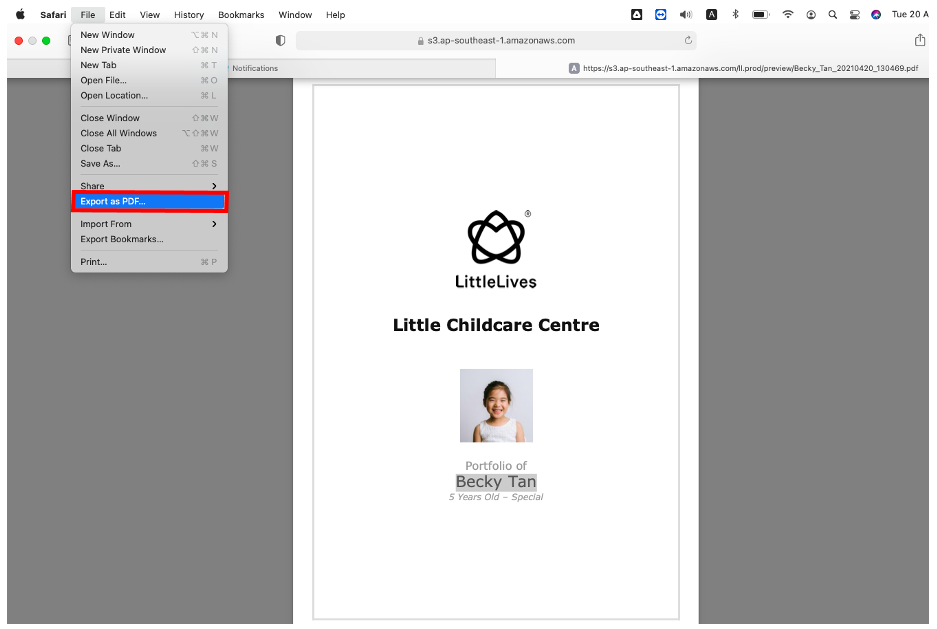
Parent-Teacher Meeting coming up? Consolidate your student's pictures and evaluation in one file!
Step 1: Ensure the following actions are completed:
- All your photos are uploaded, tagged and captions are completed!
- Mark and save your evaluation checklist!
Once the above is done, it is time to generate!
Step 2: Click on Portfolio tab > Select Stories

Step 3: Select the Class
Step 4: Select the specific student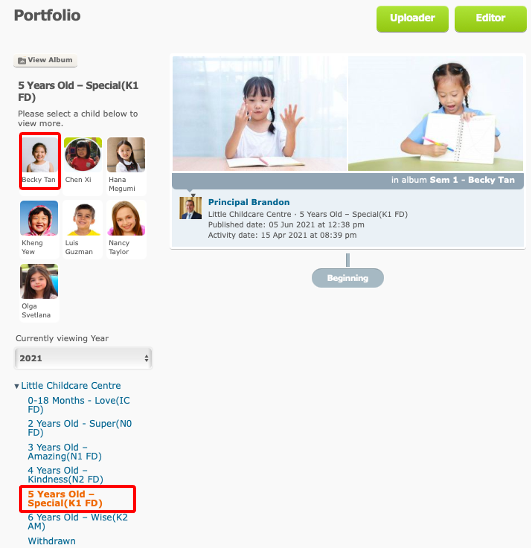
Step 5: Click on Print Portfolio
Step 6: Select Print as PDF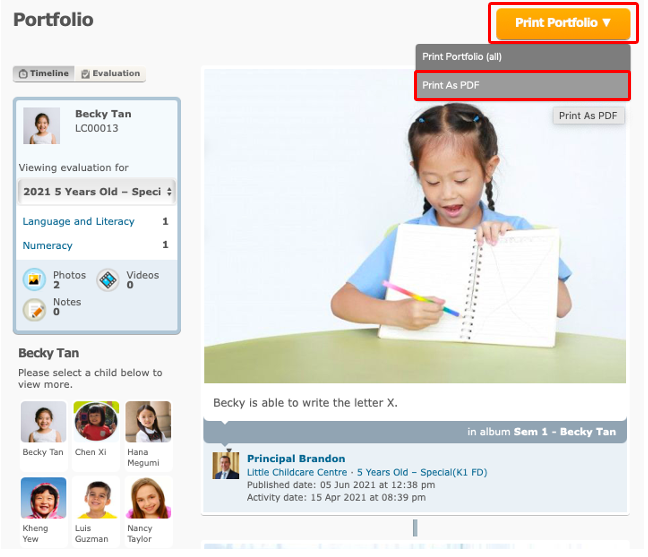
Step 7: Select the items to be included in the Portfolio PDF.
a. Checklist/Goals - This refers to Old Evaluation which school marks at Portfolio Stories instead of Portfolio Evaluation. If your school has fully utilised New Evaluation, you can leave this part.
b. Media:
- Choose Media (All media), Favourite or Album.
- Enter the date period to extract the selected photos. This is based on the photo's published date.
1. Due to the large amount of data, we suggest generate Media following Favourites or Album instead choosing Media.

2. If parents want to view all photos, kindly advise downloading them on parents' end: How do I mass download photos and videos for my child?
c. Acknowledgement Form - To include an acknowledgment section for Parents to sign that they have received the portfolio report
d. New Checklist - Select the name of New Checklist that you want to generate. This is the checklist marked in Portfolio Evaluation feature.
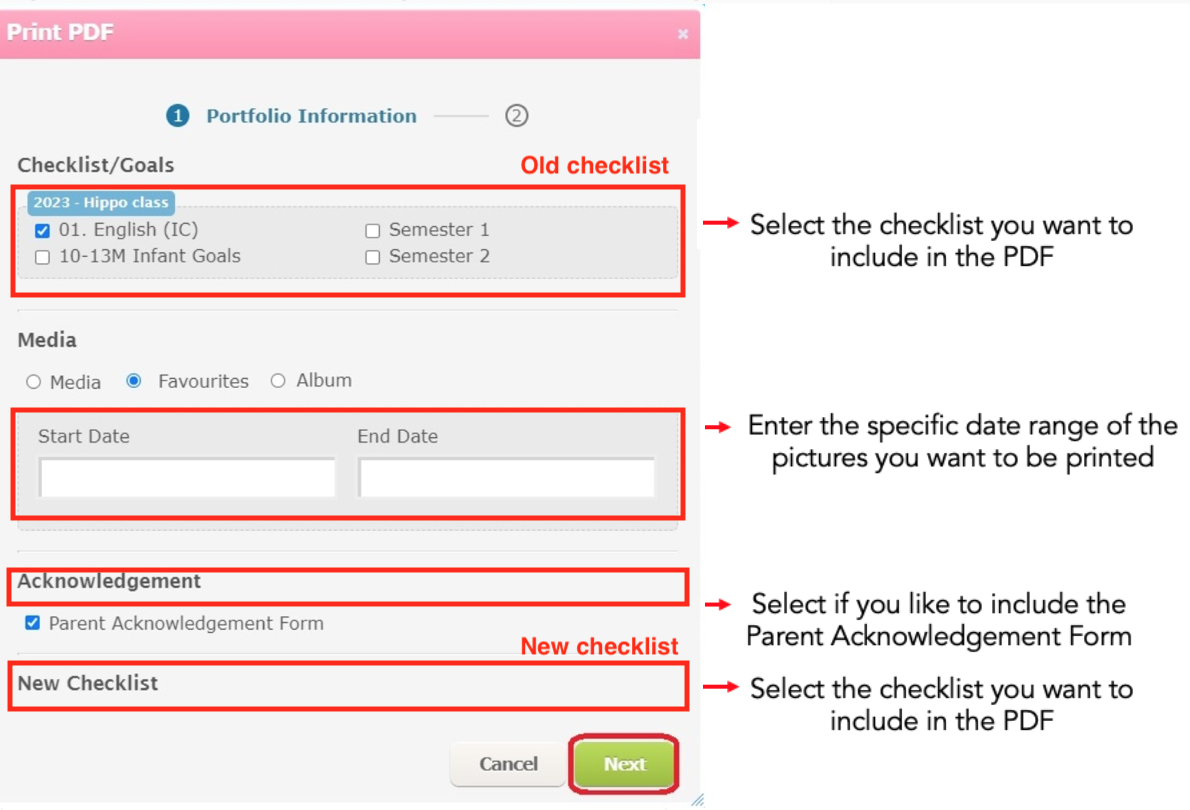
Step 8: Click Next to proceed with the portfolio report generation.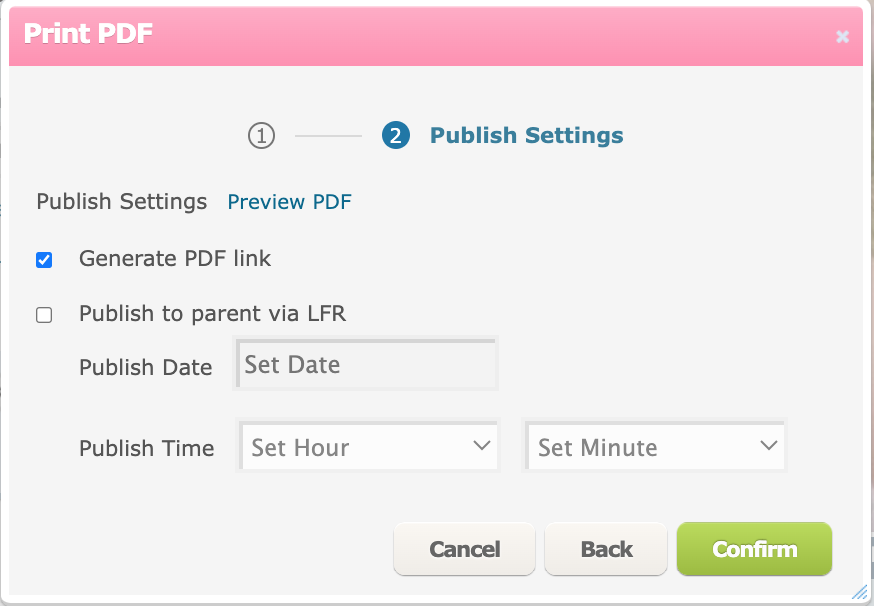
Step 9: Click on Generate PDF link, then click on Confirm.
For Publish to parent via LFR, do select the Publish Date and Time for parents to view.
Once confirmed, you will receive a pop-up message that the portfolio is generated.
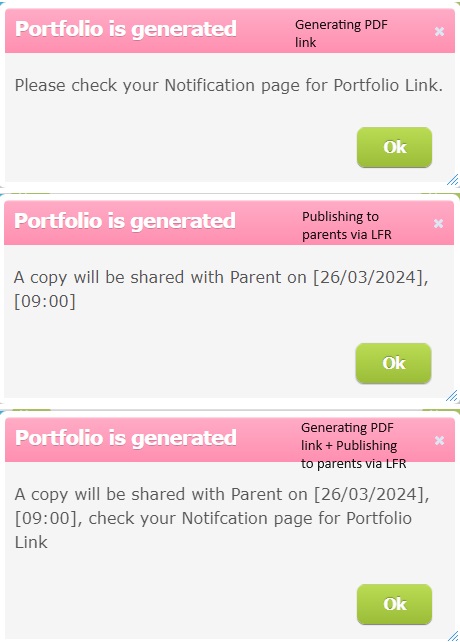
Step 10: Refresh your page and you will see a red badge notification on the Notification tab
Step 11: Click on your Notification tab
Step 12: Click on download at this link to start downloading the file.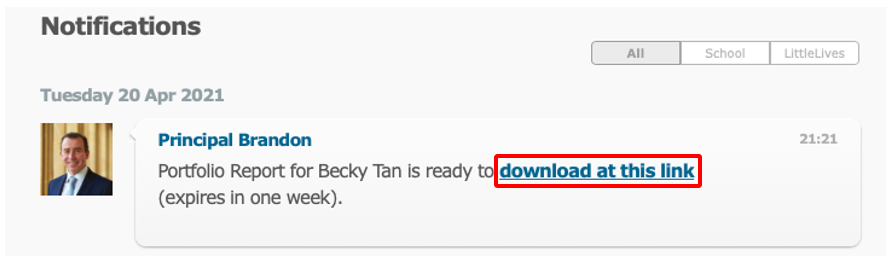
Example: