Communication should be easy and convenient! Here's how you can chat with the school anywhere and anytime with a few simple steps!
You can send a message to school via Little Family Room app or when you log in to wwww.littlelives.com
Little Family Room App
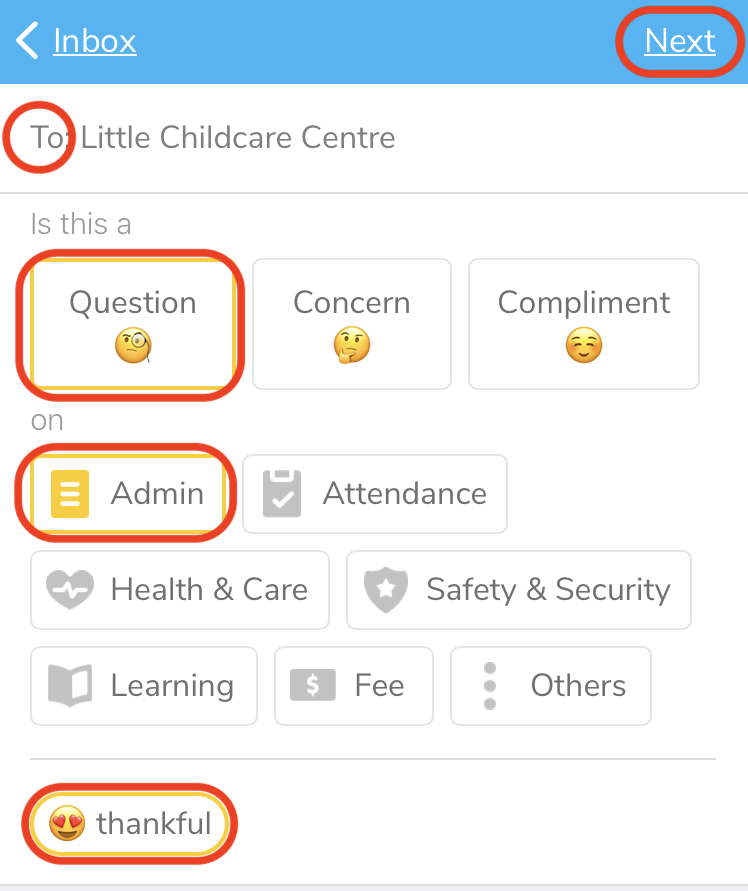
Step 1: Click on Inbox once logged into the Little Family Room app

Step 2: Tap on the pencil icon  (iOS) /
 (Android) to start a conversation.
Step 3: At To, the school name will be automatically prompted.

Note: If your children are in a different centres, select the school name from the drop down list
Step 4: Select type of conversation to be either Question, Concern or Compliment
Step 5: Select a topic from the options list
Step 6: [Optional] Add feelings by tapping on + feelings button
Step 7: After selecting all details needed, click on Next
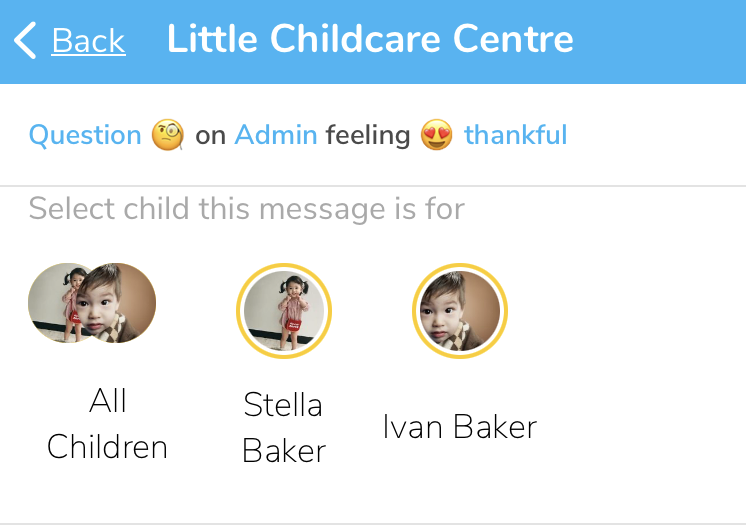
Step 8: Tap on profile photo of a child meant for the message
You can select one or more child (yellow highlight will surround selected child)
Tap on All Children the message is about all of your children for school team to take note
Step 9: Write your message in the message box
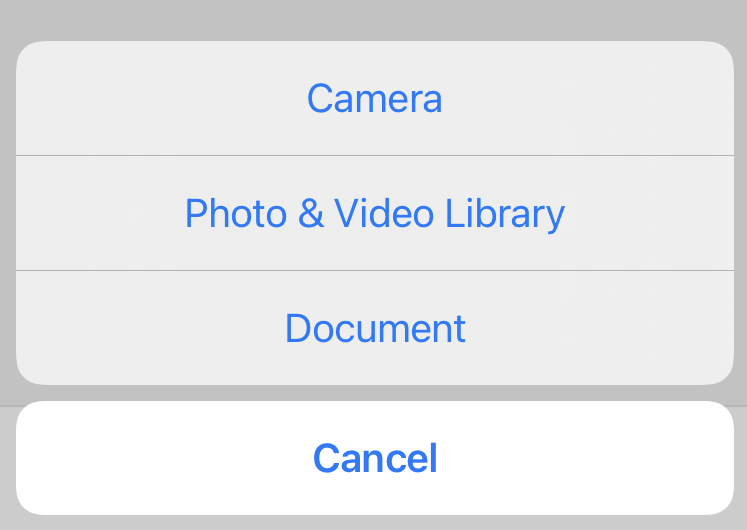
Step 10: [Optional] Add attachments by clicking on the + symbol
Step 11: Send the message by clicking on the blue arrow