Note: Portfolio media is only available for download for up to 2 years. Any media older than 2 years will no longer be accessible for download.

Tip: We recommend that users and parents generate and download the Portfolio and Evaluation annually to ensure important records are kept.
On school's end:
Step 1: Login to wwww.littlelives.com
Step 2: Head into Settings tab
Step 3: Untick Restrict Family View of Evaluation
Step 4: Click Save
On Parent's end:
Step 1: Login to wwww.littlelives.com
Step 2: Head into Portfolio tab
Step 3: Select the Currently viewing Year and Class
Step 4: Click Print Portfolio, followed by Print as PDF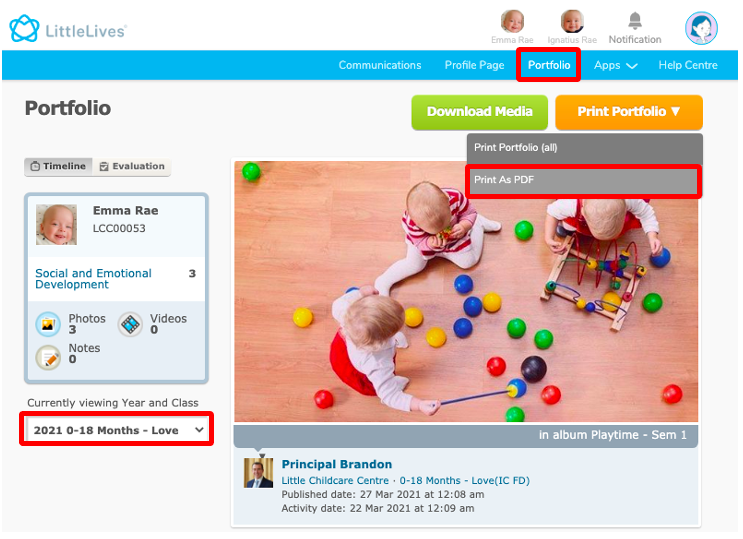
Step 5: Determining the Portfolio Content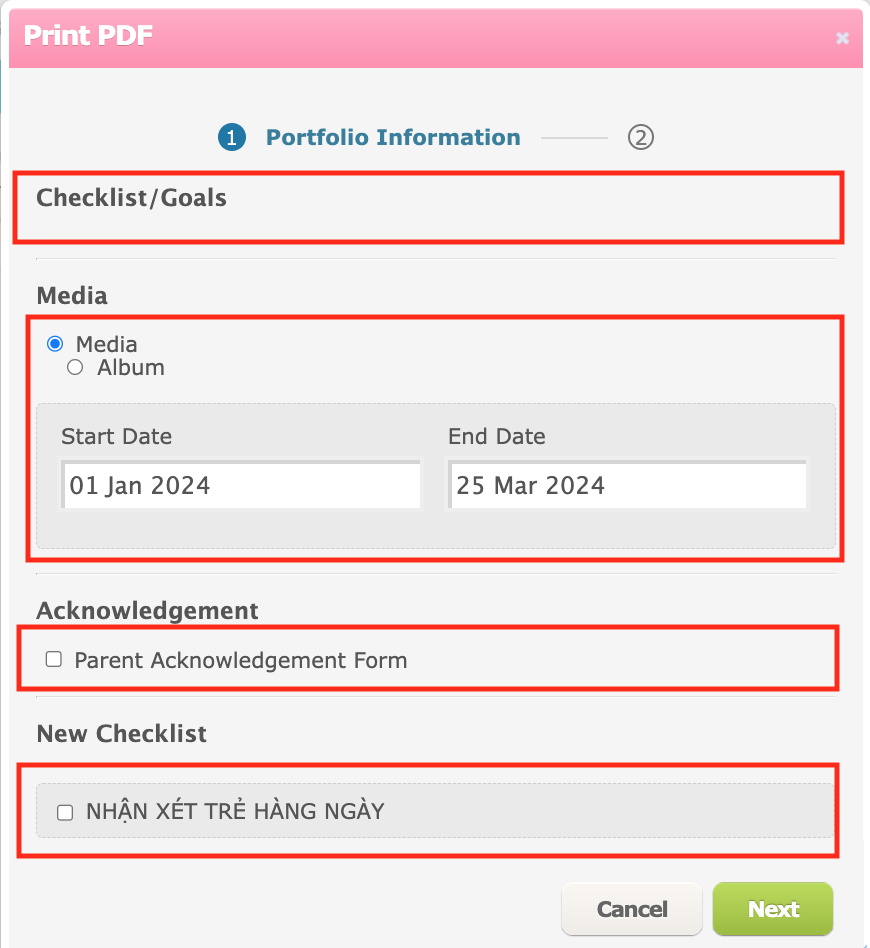
1. Checklist/Goals [Optional]
If you like to include the checklist/evaluation, simply tick the checklist you would like to include in the Portfolio pdf, else leave it untick.
This refers to Old Evaluation which school marks at Portfolio Stories instead of Portfolio Evaluation. If your school has fully utilized New Evaluation, you can leave this part.
2. Media (Pictures) [Optional]
a. Tick the Media or Album
b. Guide the Parents to key in the Start Date and End Date for the pictures that you have selected to publish the Portfolio
3. Parent Acknowledgement Form [Optional]
If you like to include the Parent Acknowledgement form at the end of the portfolio pdf.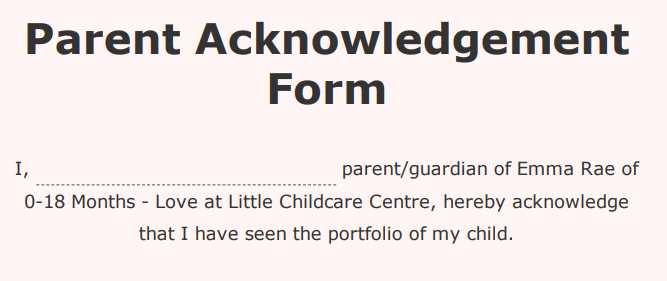
4. New checklist [Optional]
This is the checklist marked in Portfolio Evaluation feature.
If you like to include the checklist/evaluation, simply tick the checklist you would like to include in the Portfolio pdf, else leave it untick.
Step 6: Click Next to proceed with the portfolio report generation.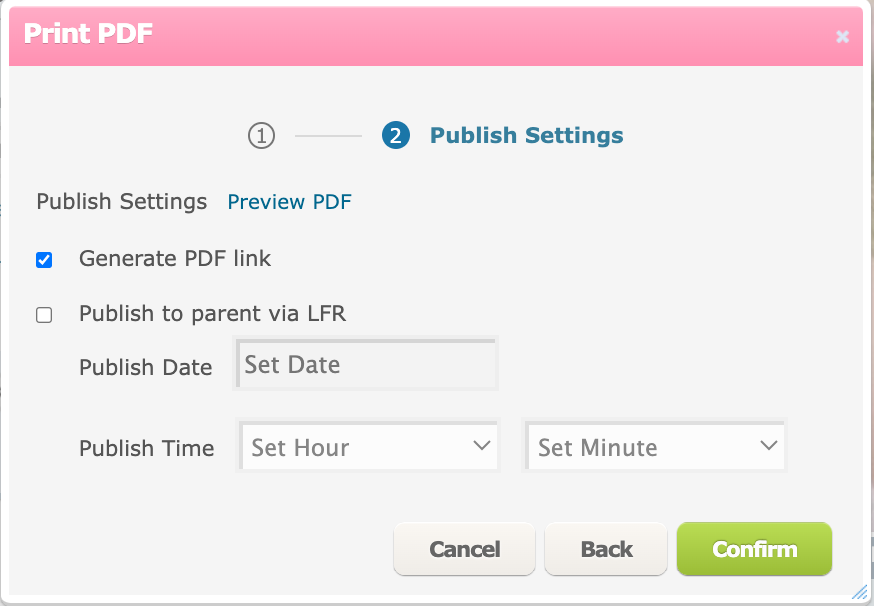
Step 7: Click on Generate PDF link, then click on Confirm.
For Publish to parent via LFR app, do select the Publish Date and Time for parents to view.
Once confirmed, you will receive a pop-up message that the portfolio is generated.
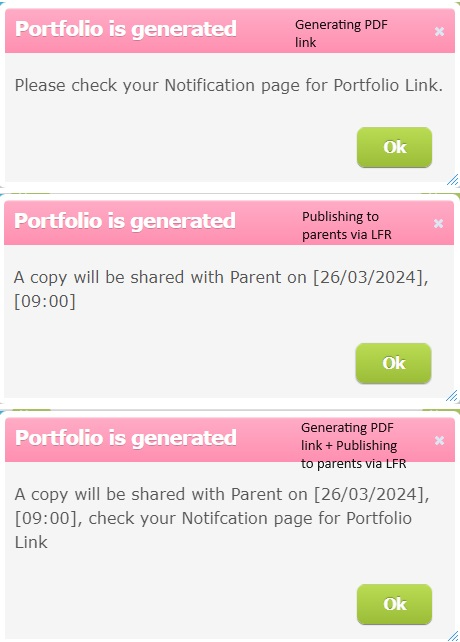
Step 9: Parent will have to refresh their page and he/she will see a badge notification on the Notification tab.
Step 10: Head into Notification tab and Parent will see a notification message with a link to download the Portfolio report.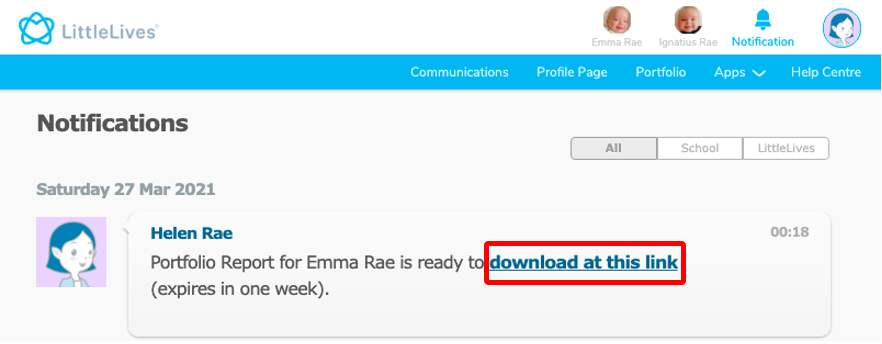
Step 11: Click on download at this link and it will open up on a new tab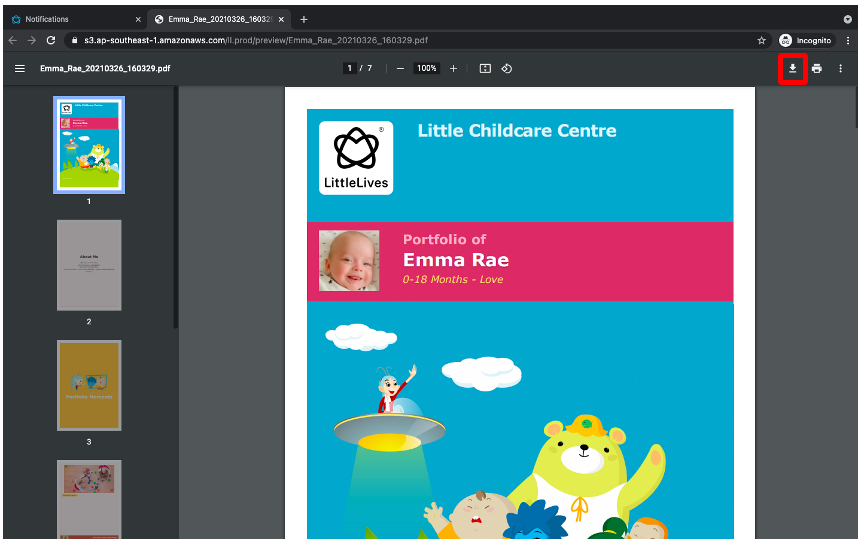
Note:
1. The link is available for download for one week (7 days). If it expires, please generate again.
2. If Parent is unable to view the Print Portfolio button, check if the Restrict Family View of Evaluation is untick.