Step 1: Log in to LittleLives website
Step 2: Head intothe Portfolio tab
Step 3: Select the currently viewing Year and Class
Step 4: Click Print Portfolio, followed by Print as PDF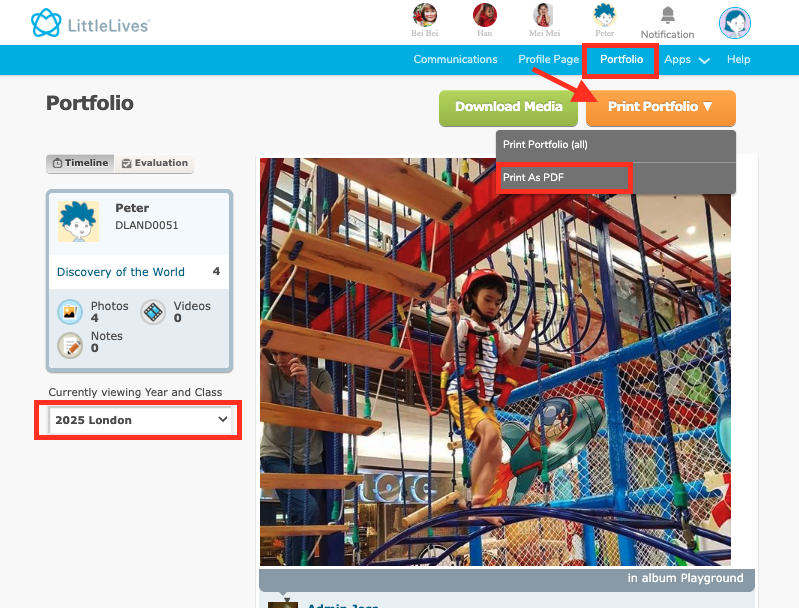
You will see a dropdown with 2 options for you to click on:
Print Portfolio (all): Generates all the media tagged to your child for the whole year into the scrapbook
- If you select Print Portfolio (all), your child's portfolio will open in a new tab.- (P.S. If you have selected “Print Portfolio (All)” and want to save the Portfolio, you can change your printer destination to “Save as PDF”.)
- Print As PDF: Allows you to select the Checklists and a specific period of Moments (media uploaded) to be included in the scrapbook
Step 5: Determining the Portfolio Content
5.1 - Moments (Pictures)
- Tick the Moments
- Guide the Parents to key in the Start Date and End Date for the pictures that you have selected to publish the Portfolio
5.2- Acknowledgement
- If the Acknowledgement form is required, tick the checkbox. The form will need the parent's acknowledgment.
5.2- New Checklist
If you like to include the checklist/evaluation, simply tick the checklist you would like to include in the Portfolio pdf, else leave it unticked.
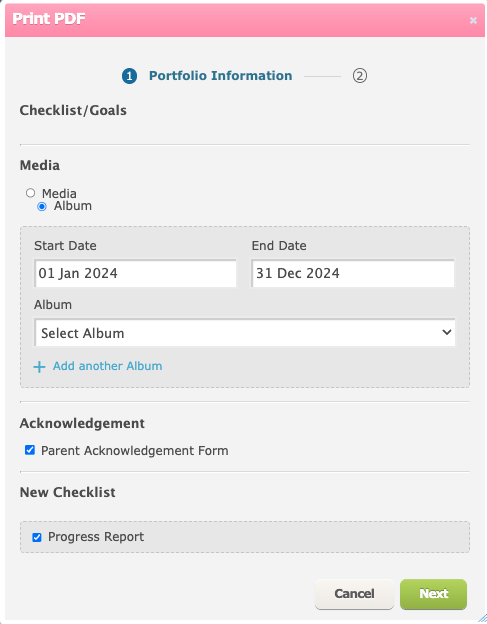
Step 6: Click Confirm to start generating
Step 7: The Parent will see a pop-up box to notify that the Portfolio report is being processed and Parent will need to check the Notification tab later once it is ready. Click Ok to close the pop-up box.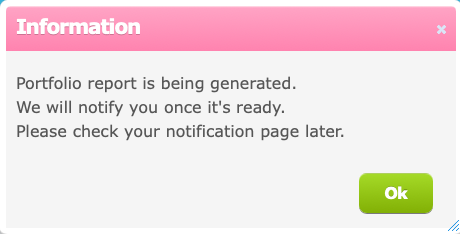
Step 8: The Parent will have to refresh their page, and he/she will see a badge notification on the Notification tab

Step 9: Head into the Notification tab, and Parent will see a notification message with a link to download the Portfolio report.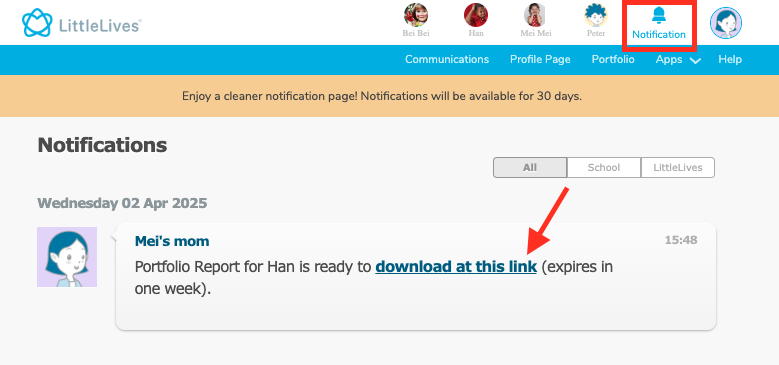
Step 10: Click on download at this link to start downloading.
Note:

1. The link is available for one week, it has expired please generate again by following the steps above.

2. If you are unable to see the Print Portfolio button, kindly approach the school for them to turn on the settings.